<img height="1" width="1" style="display:none" src="https://www.facebook.com/tr?id=2126246971172331&amp;ev=PageView&amp;noscript=1">
Skip to content
English
  • There are no suggestions because the search field is empty.

How to Use Scoped Permissions in Applauz

As your company grows, it's important to stay organized while maintaining control over who sees what. Applauz now supports Scoped Permissions — giving you more precise control over role-based access. With scoped permissions, you can limit visibility to just an employee’s direct reports, helping reduce clutter and protect sensitive data.

This feature is part of Applauz’s role-based access control with resource scoping, where the “resource” being scoped is the employee hierarchy.

What Are Scoped Permissions?

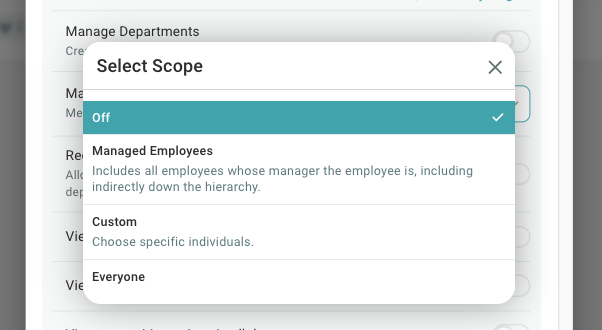
Scoped Permissions allow you to assign a permission to a role, then limit how broadly it applies. Instead of giving access to all employees, you can scope that permission to only apply to an employee’s Managed Employees (i.e. direct reports).

Example:
Let’s say you create a role called Team Manager.
You turn on the permission “View employee profile and reports” and set it to Scoped: Managed Employees.
This means the manager will only be able to view the profiles and reports of the employees who report directly to them.

How to Set Up Scoped Permissions

  1. Log in as an Administrator and go to the Employees section

  2. Click on Roles

  3. Create a new role or edit an existing one (e.g., "Team Manager")

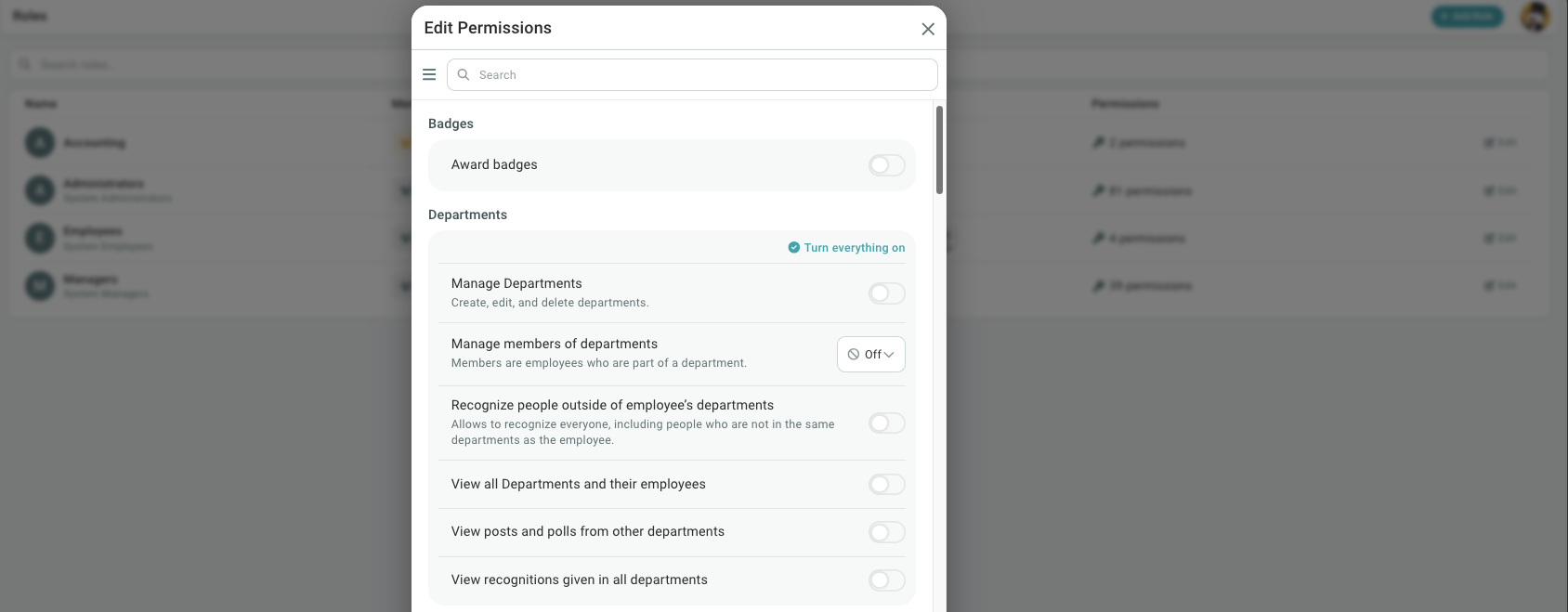
  4. Assign the permissions you need, and where applicable, use the dropdown to set the scope to Managed Employees

  5. Assign the role to selected users

  6. Click Save to finalize your changes

Why Use Scoped Roles?

Scoped Permissions give you targeted control across teams, ensuring users only see the information they need. This helps reduce distractions, prevent errors, and improve security. It’s a smart way to keep your organization structured and efficient.